
What a Dot Actually Is
A dot is an agent that owns a workspace instead of a conversation. OpenAI's launch page describes them as “remarkably capable, always-on agents built to handle everything,” powered by GPT-6 Astra, that “have their own cloud computer, learn from feedback over time, and can work towards your goals 24/7.”
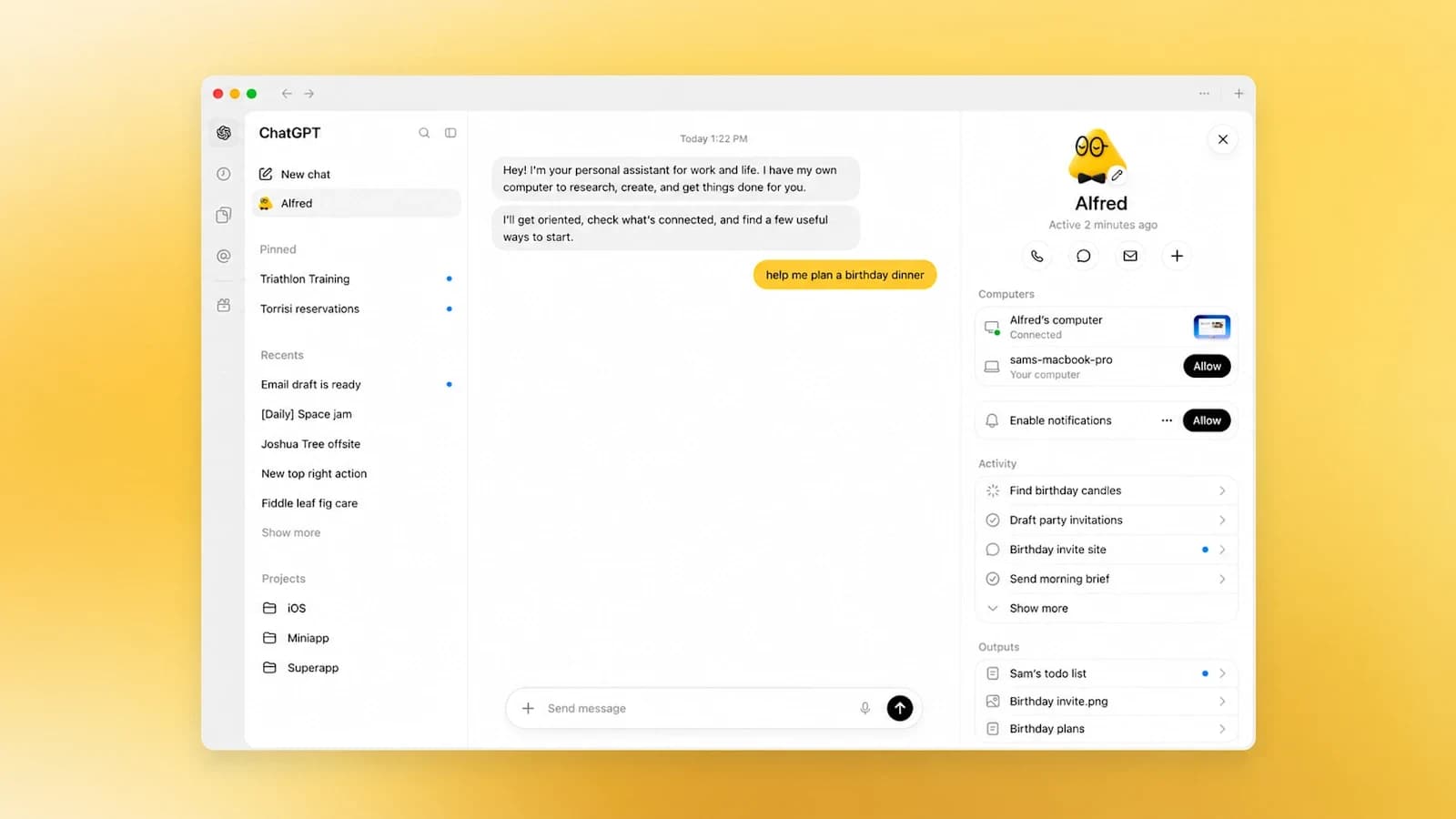
The practical difference from a normal assistant session is continuity. With a dot you give it a name and ongoing goals; it accumulates context about your preferences and standards, and it can keep working on several projects without you juggling separate threads or directing every step. OpenAI frames the endpoint as “teams of dots working together on your behalf,” which it says it envisions but is not shipping today.
OpenAI also published a launch film. The poster frame below is the official thumbnail; the full clip runs on the OpenAI YouTube channel.

Watch OpenAI's Launch Film
OpenAI's own two-and-a-half-minute introduction to dots, published on the official OpenAI channel. It shows the agent working across apps and channels rather than answering a single prompt.
Introducing dots, powered by GPT-6 Astra. Remarkably capable, always-on agents built to handle everything.
— @OpenAI September 29, 2026
Its Own Computer and Browser
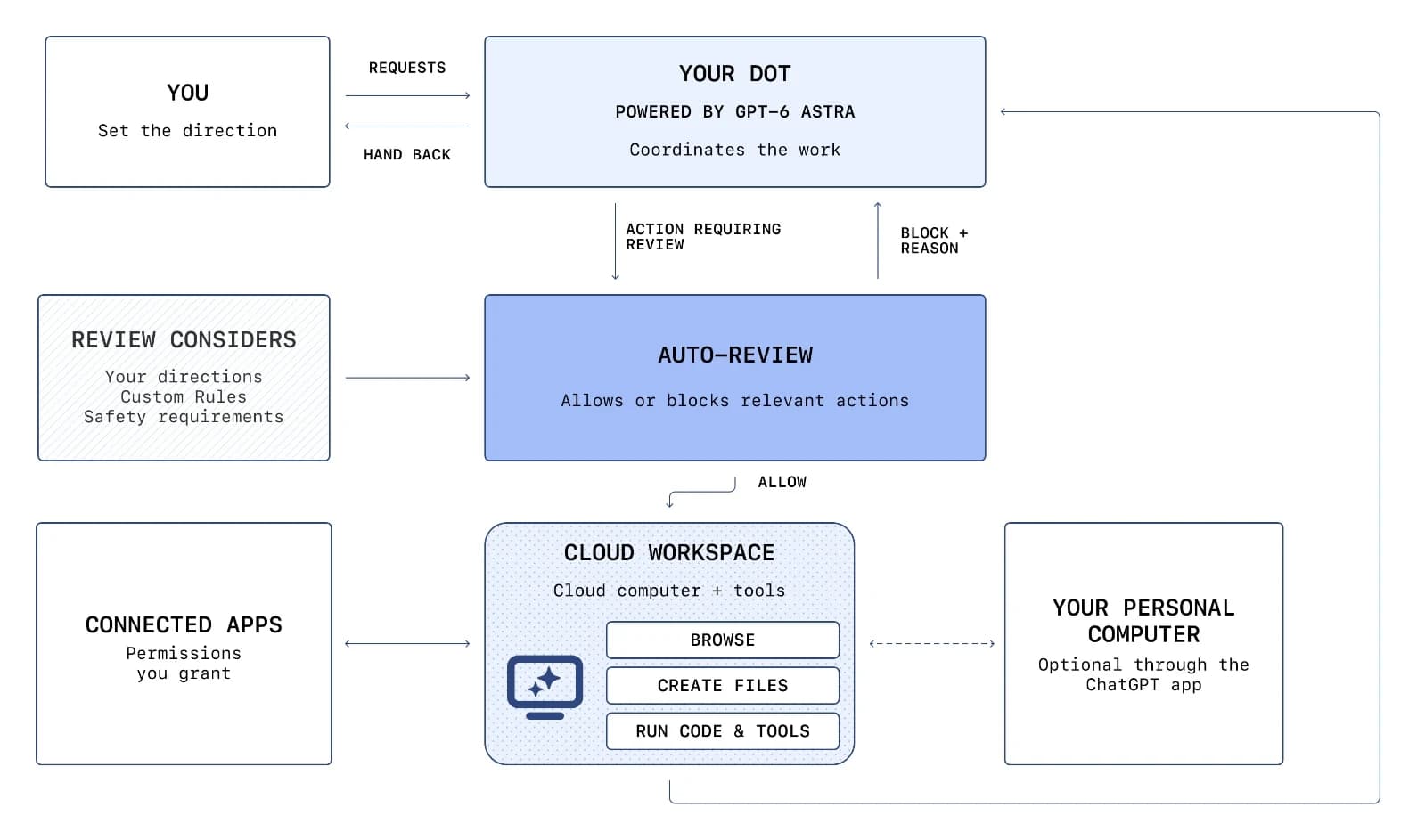
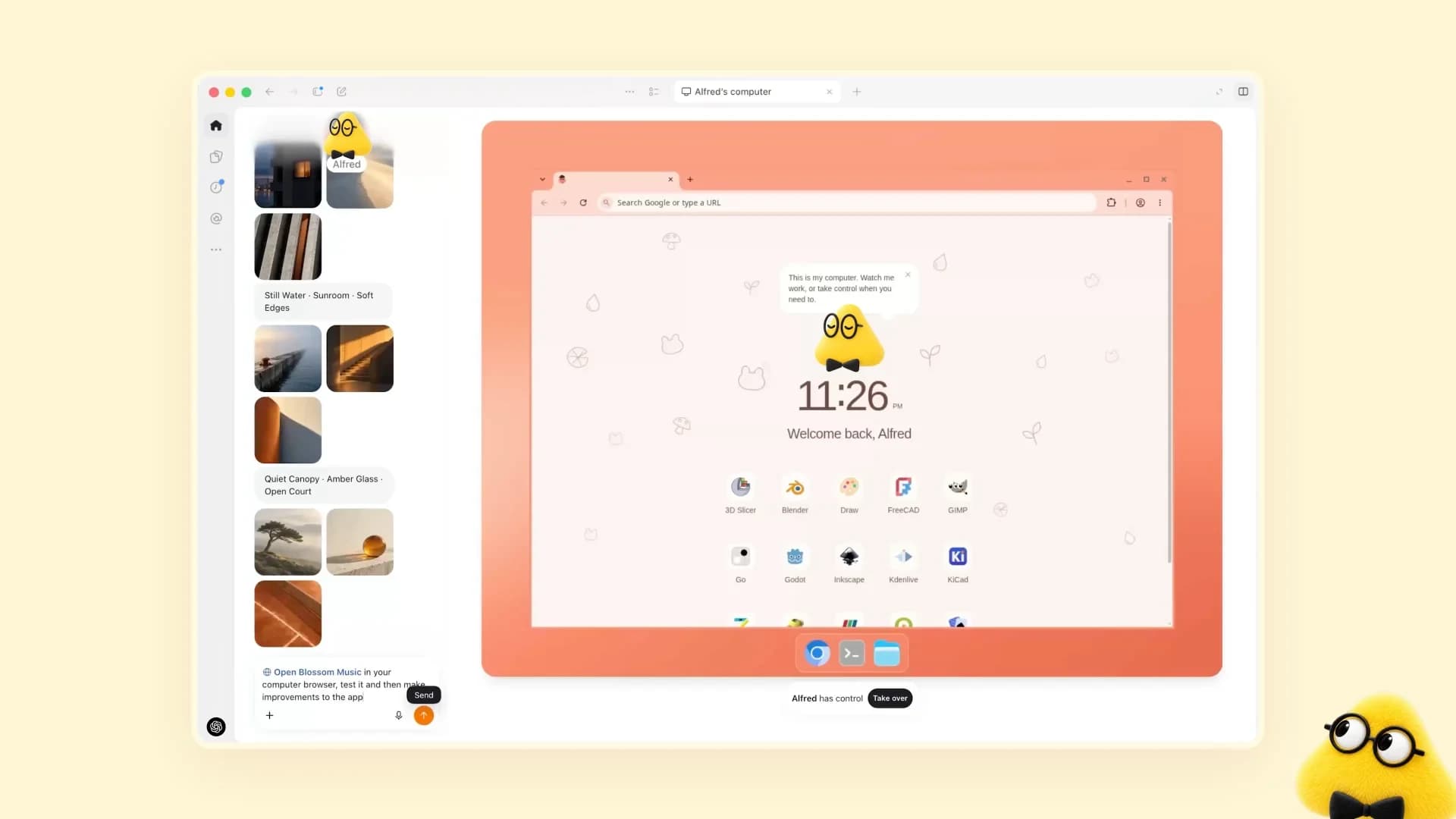
The core architectural claim is that a dot does not borrow your machine. Each dot runs on its own cloud computer with its own browser. OpenAI states that your computer and its contents stay separate unless you choose to connect them, and that you can open your dot's computer at any time to inspect its work.
You can also connect other devices, including your laptop, in which case the dot can be useful directly alongside you, “connect and use your laptop, where it can then be useful directly alongside you,” in the launch page's phrasing. That is a deliberate opt-in, not the default.
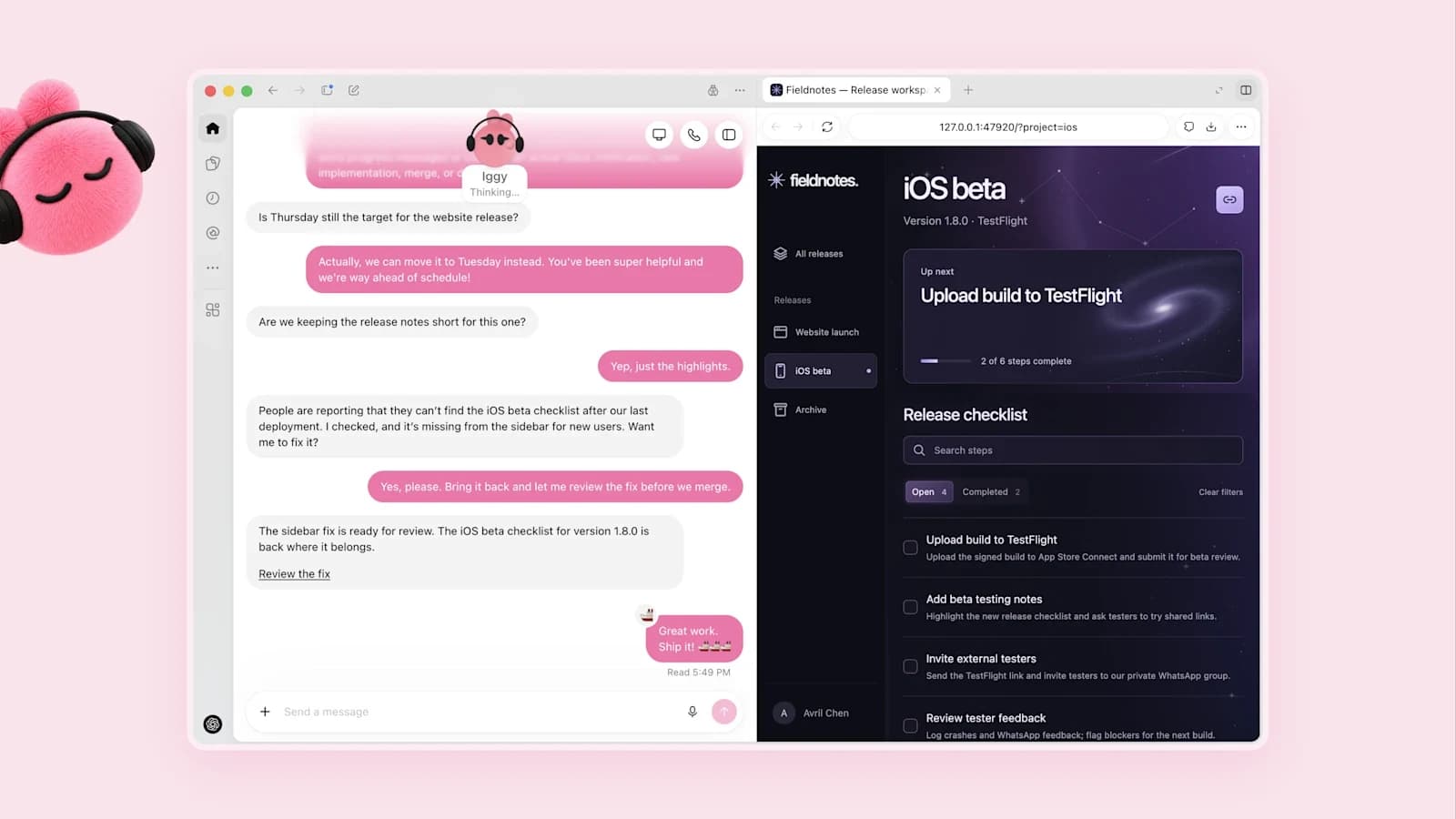
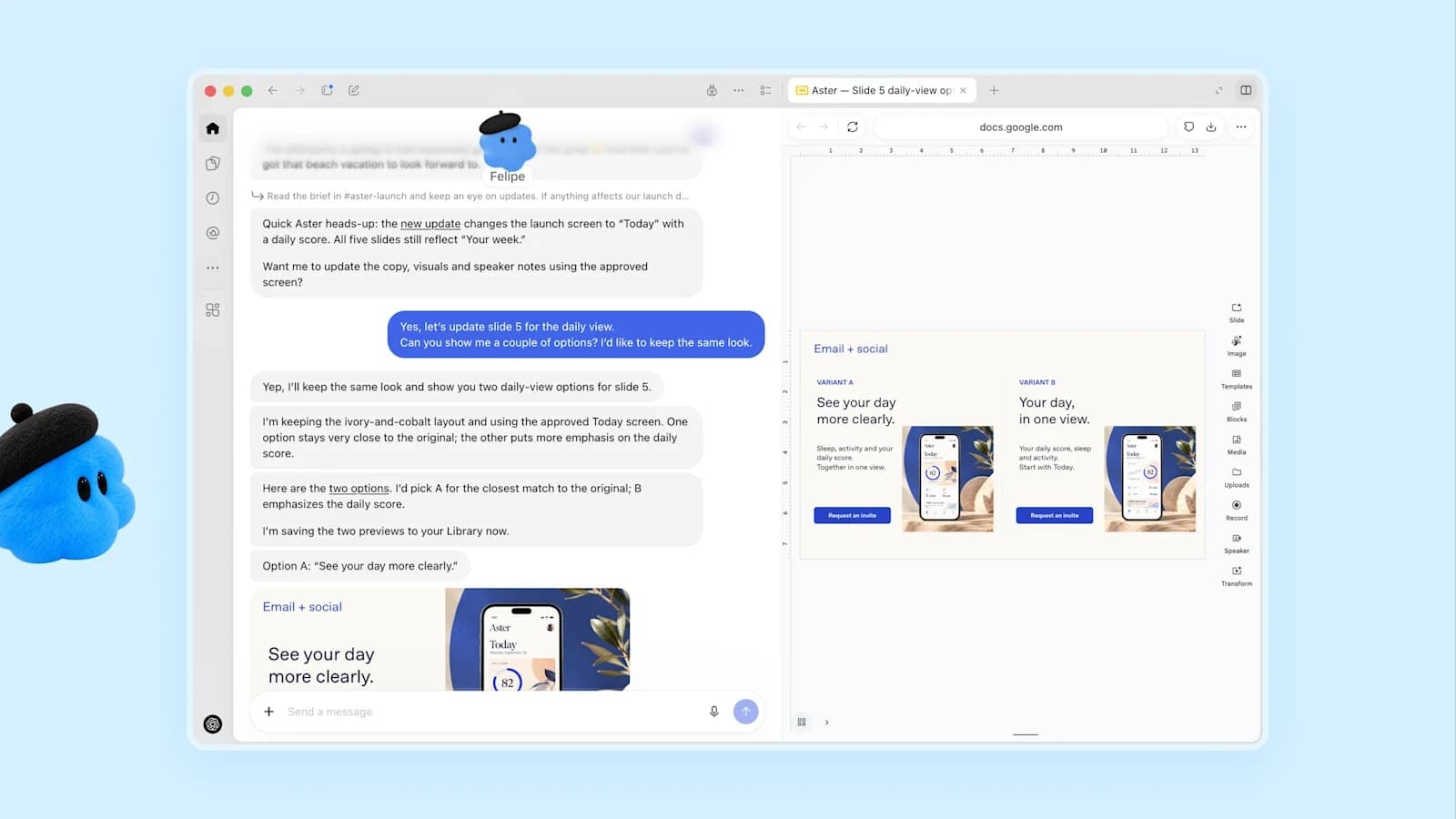
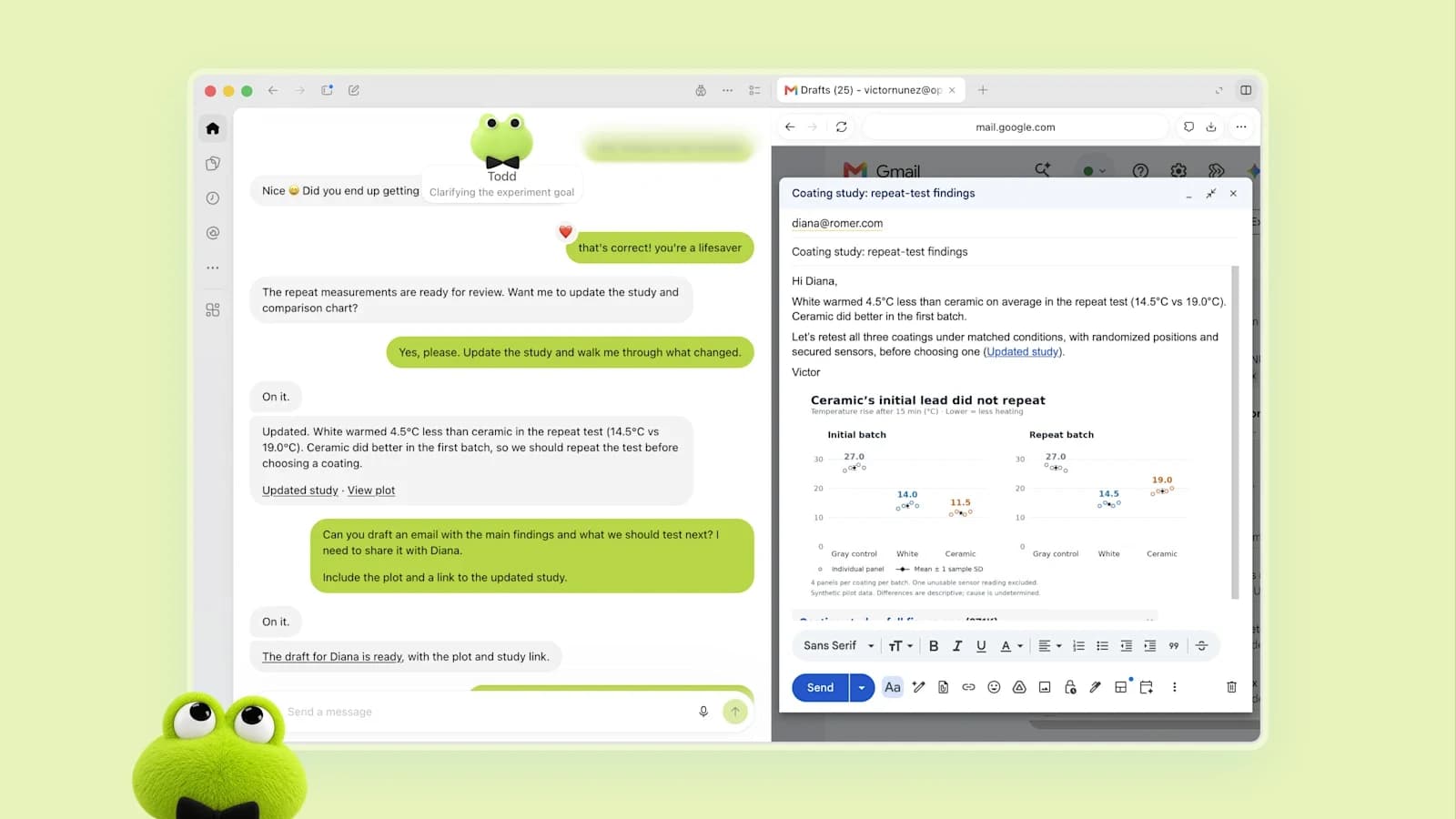
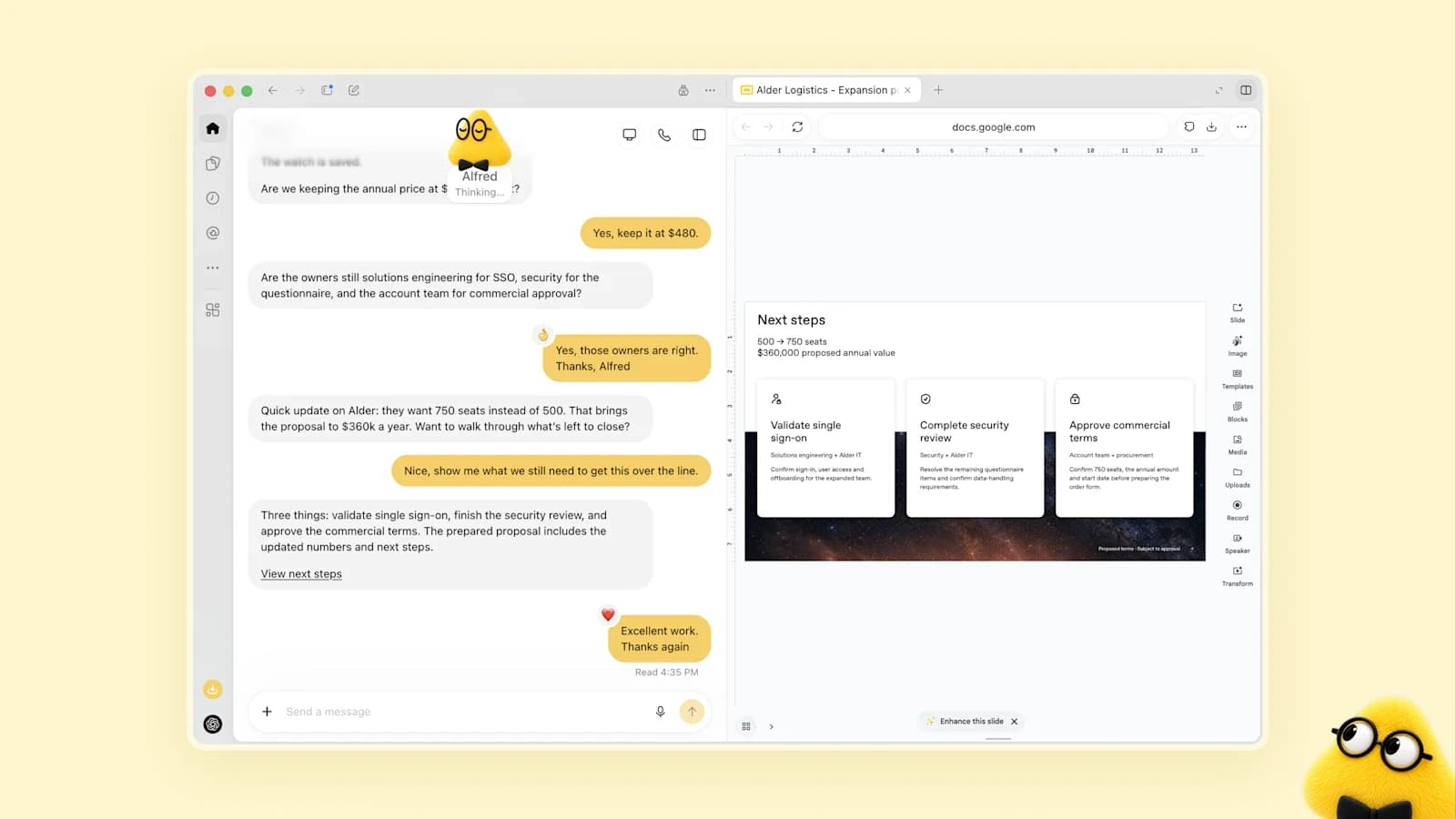
OpenAI connects this to the five persona examples in its launch carousel, which illustrate the intended range rather than benchmarked capability. Each is a named dot handling a different kind of work.
Where Dots Reach You
Dots are reachable from ChatGPT on desktop, web, and mobile, and they can also message you with progress, questions, or decisions that need you. OpenAI states you can message a dot in Slack and Microsoft Teams, with texting coming soon, and that a dot carries context across every channel. Start a project in ChatGPT, share context with the working team in Slack, and let the dot follow through.
There is also a voice path: OpenAI says you can hop on a voice call with a dot when you need to talk something through.
Permissions, Rules, and Approvals
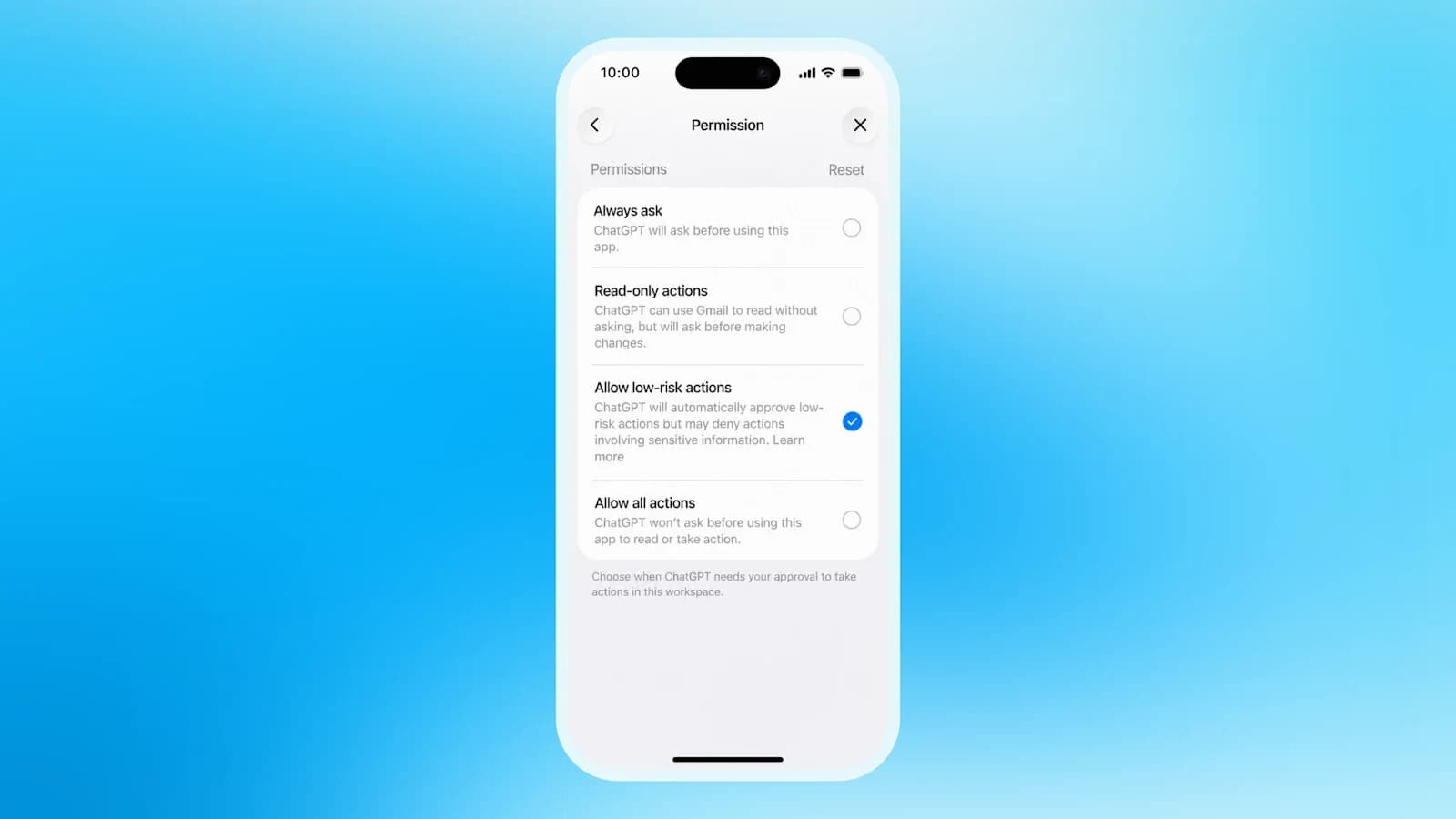
This is where most of the launch material's detail lives, and it is the part worth reading carefully before connecting anything. OpenAI describes four states for a dot's actions.
| Action class | What happens | Source |
|---|---|---|
| Acts on its own | Work that matches built-in rules and your Custom Rules, inside its own cloud workspace. Background proactive research is restricted to read-only tools. | Introducing dots; dots safety blog |
| Asks first | Actions that could affect your accounts or share information are checked by auto-review against your instructions, Custom Rules, and safety requirements. | Introducing dots; auto-review docs |
| Always stays with you | Certain sensitive tasks, such as changing a password, are never delegated to the dot. | Introducing dots |
| Can be paused by OpenAI | Security safeguards monitor for potentially harmful behavior; if the monitoring system detects a safety concern it can pause or stop the dot's work. | Introducing dots |
The mechanism is called auto-review. OpenAI describes it as checking actions that could affect your accounts or share information against your instructions, Custom Rules, and safety requirements, and then determining what can proceed, what needs approval, and what you must do yourself. The auto-review flow is documented separately in OpenAI's sandboxing documentation.
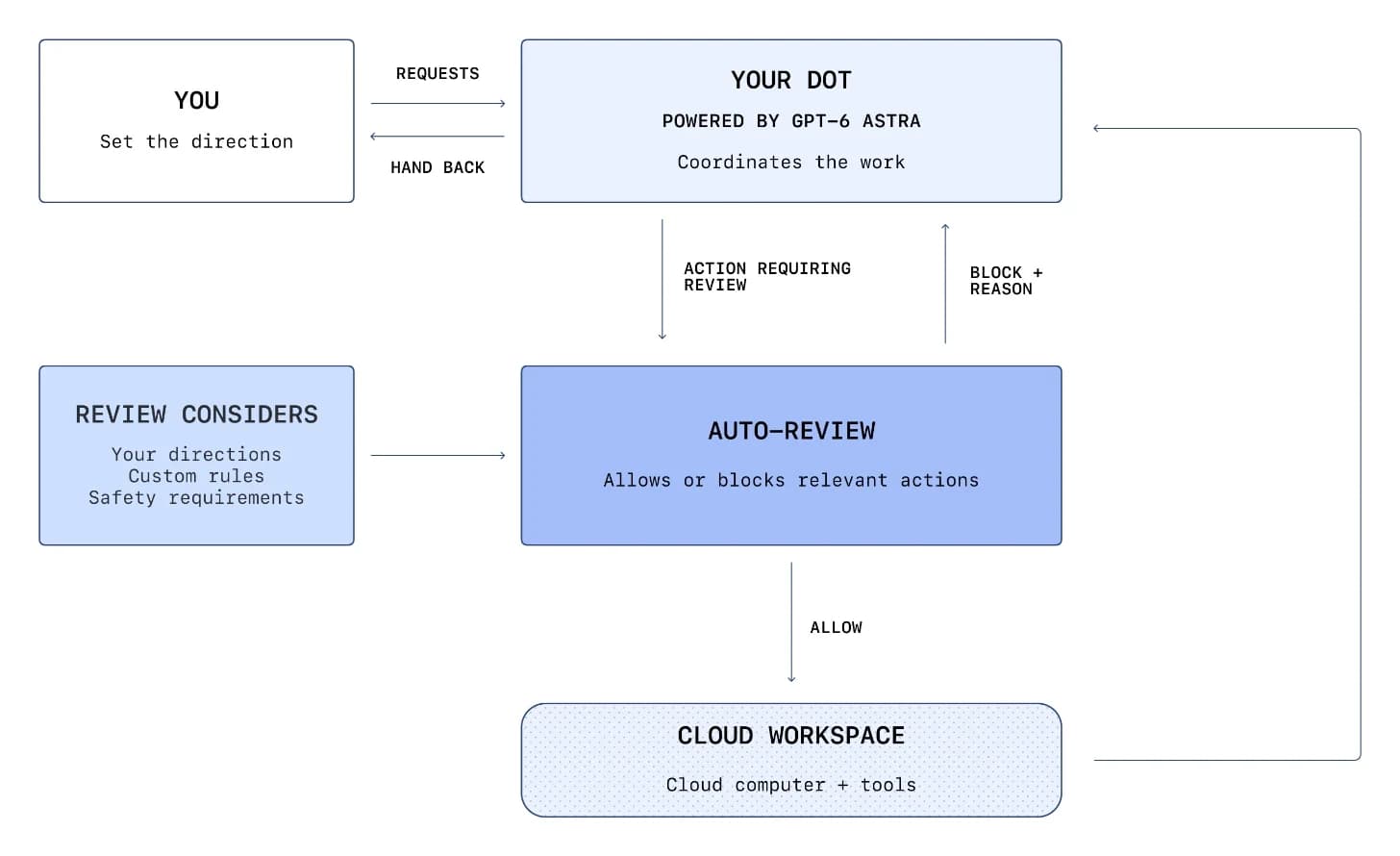
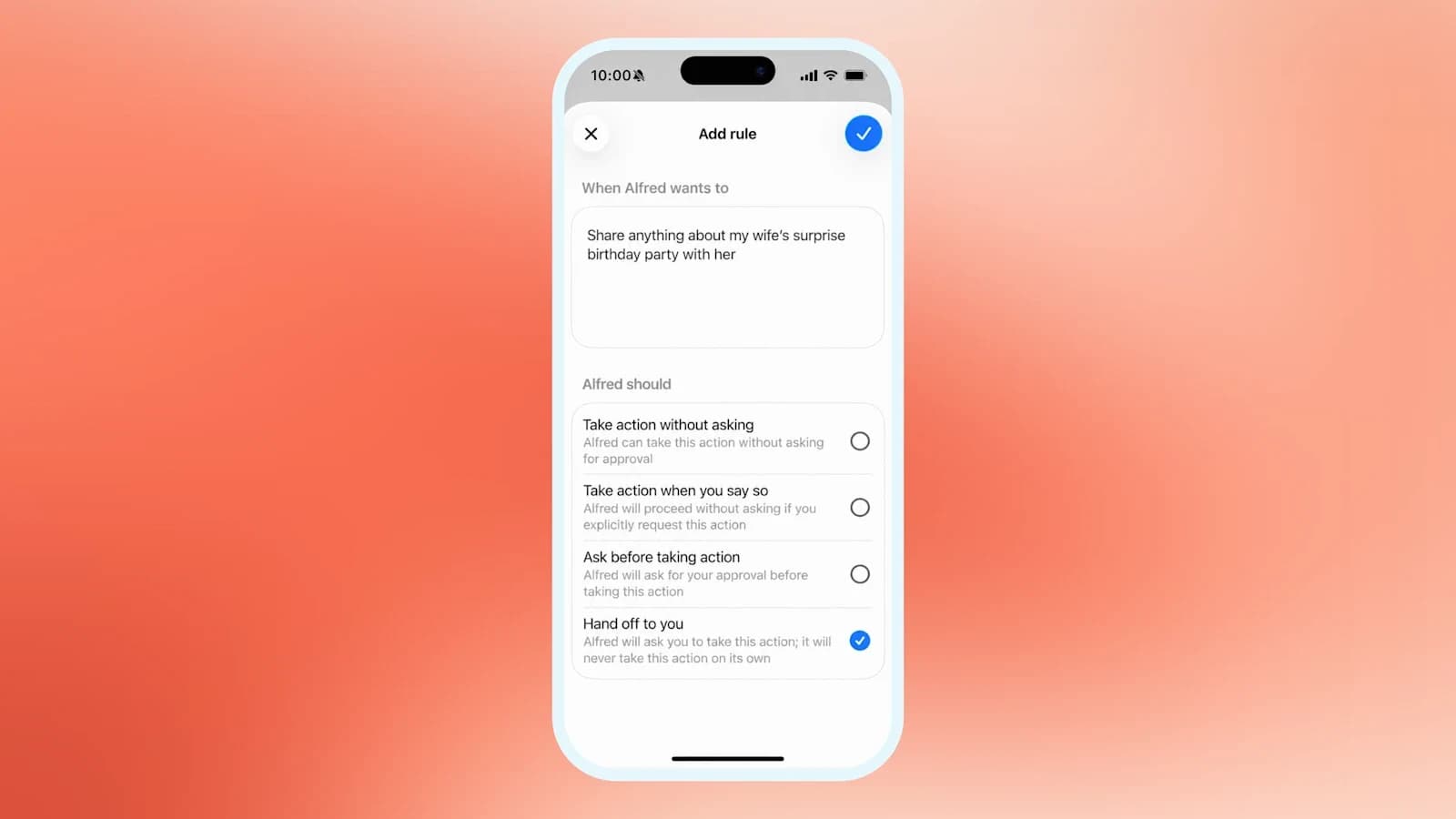
You control the rules, not just the apps. OpenAI states that Custom Rules let you allow specific actions, require approval, or block them, that built-in safety requirements always apply on top of your rules, and that you can follow progress including background work in Activity View and redirect a dot as needed.
What Proactive Research May Touch
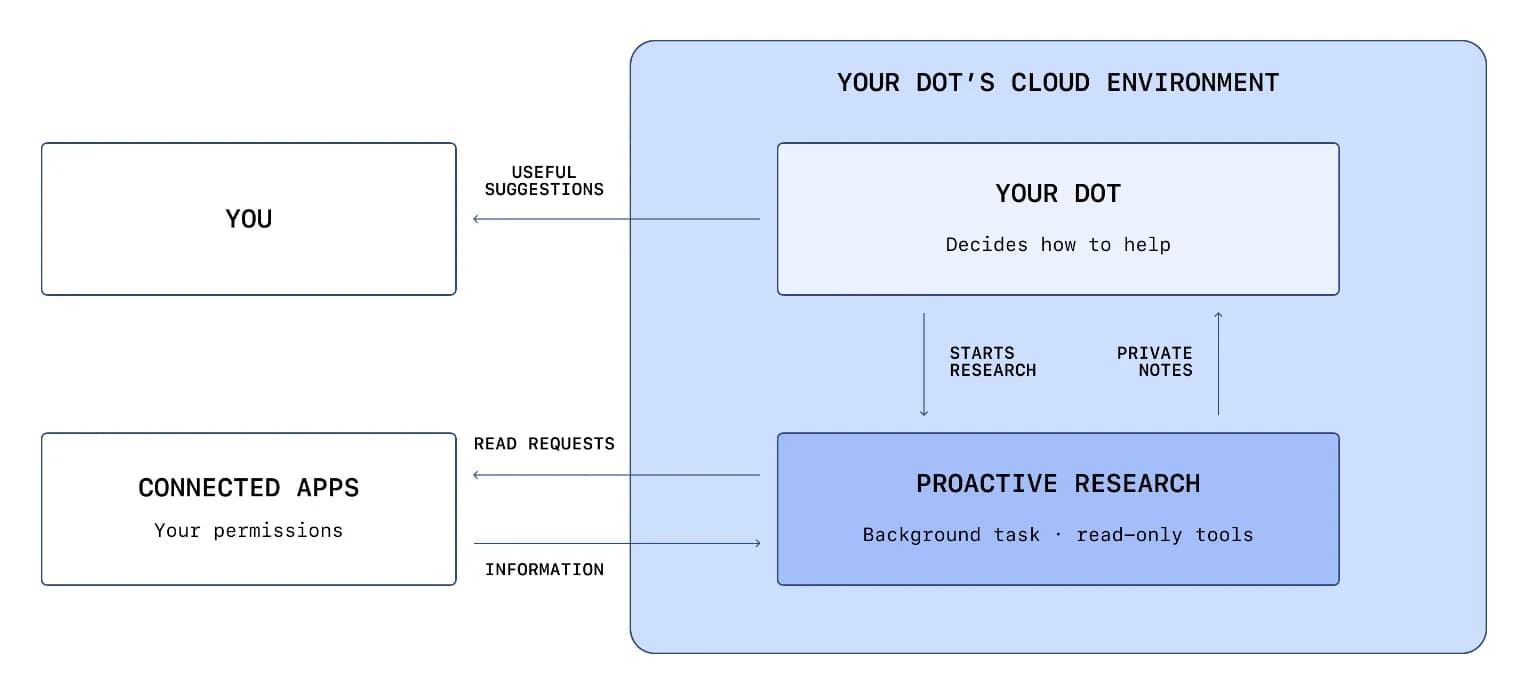
When you are not actively working with it, a dot looks for ways to help in the background. OpenAI calls this proactive research, and the constraint on it is specific and narrow: it uses the apps you have already connected, with tools that are restricted to be read-only, which means they cannot send messages, change app content, or control your browser or computer.
That is the strongest technical claim in the launch material, and it is worth stating as a permission boundary rather than a trust statement. Background work reads; it does not write unless the action goes through auto-review and your rules allow it.
Two further safeguards are stated on the launch page. For signing into supported websites, dots can use saved passwords without exposing them to the model. And security safeguards built into dots help defend against malicious instructions and monitor for potentially harmful behavior; if the monitoring system detects a safety concern, it can pause or stop the dot's work.
Data Handling and Training Controls
OpenAI makes three separate statements here, and the distinction between them matters for anyone in a regulated environment.
- OpenAI does not use content from ChatGPT Business, Enterprise, or Edu workspaces to improve its models by default.
- On personal ChatGPT plans, you control whether dots' conversations and work are used to improve models, through the existing data controls.
- OpenAI does not train directly on proactive research or a dot's notes to itself. Information from those may be used if it helps inform an eligible conversation or task, depending on your settings.
The third bullet is not the same as “never used.” OpenAI's wording is that it does not train directly on that material, while allowing that information from it may inform an eligible conversation or task subject to settings. Read it as a scoped statement, not an absolute one.
Specialist Dots for Teams
Alongside the consumer launch, OpenAI previewed specialist dots: dots with their own identity, credentials, and access to a company's systems of record, set up to take on defined responsibilities inside an organization. OpenAI says it is building on lessons from early testing inside OpenAI across procurement, invoice processing, email marketing, customer support, and commercial contracting.
The stated go-to-market is focused enterprise pilots, not general availability. OpenAI says its engineering teams will work directly with organizations to define each dot's responsibilities, the tools it can use, and how people review and approve its work. OpenAI also says it is working with Microsoft to integrate specialist dots with enterprise governance and security controls in Agent 365, so businesses can manage dots through Microsoft tools they already use.
No date, price, or eligibility criteria were published for specialist dots. Treat them as a preview.
Dots will be available in ChatGPT on web, mobile, and desktop across Pro, Business Premium, and Enterprise users in eligible markets. To get started, create your first dot in the ChatGPT desktop app or your desktop browser.
— @OpenAI September 29, 2026
Availability and Cost
Rollout began September 29, 2026. OpenAI's launch page and the DevDay recap agree on the primary targets; the recap adds the Enterprise/Edu/Healthcare beta detail.
| Plan | Access | Cost |
|---|---|---|
| ChatGPT Pro | Rollout starts September 29, 2026 in eligible markets | First dot included at no extra cost |
| Business Premium | Rollout starts September 29, 2026 in eligible markets | First dot included at no extra cost |
| Enterprise, Edu, Healthcare | Beta, off by default; available when a workspace admin enables it | Not stated on the launch page |
| Plus and other plans | Not included at launch; OpenAI says it plans to expand to more users soon | Not stated |
Market eligibility is governed by a separate OpenAI help article; the launch page does not enumerate countries. No dollar price for dots is published: the first dot is included in the Pro or Business Premium plan.
Two usage details matter for planning. First, your first dot is included in your Pro or Business Premium plan at no extra cost, available 24/7, and your plan includes an allowance for deeper work with extended limits for the first month after launch. Second, and more important for anyone combining surfaces: conversations with your dot do not count toward your ChatGPT usage limits, but when you ask your dot to start or manage tasks in Codex or ChatGPT Work, those tasks count toward your usage limits as usual.
OpenAI also states a future direction: you will be able to add more dots and scale each dot's output by increasing its speed or the total amount of work it can take on per month. No pricing for that scale-up was published.
To start, OpenAI's instructions are to create your first dot in the ChatGPT desktop app or your desktop browser, connect your apps, and let it introduce itself; after setup you can message it from the ChatGPT mobile app.
What Developers Can Hand Off
OpenAI's developer account published a more concrete list of the software tasks a dot is meant to absorb. The post describes a dot as an always-on agent with its own cloud computer and access to your plugins and context, and names three hand-offs: triaging recurring bug reports and feature requests across connected apps, scoping failing builds and feature improvements around your priorities, and building and testing changes with Codex before bringing back complete pull requests for your review.
dots. An always-on agent with its own cloud computer and access to your plugins and context. Powered by GPT-6 Astra, your dot proactively keeps your projects moving.
— @OpenAIDevs September 29, 2026
The operational pattern OpenAI suggests is to help your dot understand your codebase, priorities, and what needs your approval, then give it an ongoing development goal, with setup documented in the official dots documentation.
For a team already running Codex, the honest assessment is that a dot is a coordination layer above it: the dot decides what to work on and returns pull requests, while Codex remains the execution surface and those tasks still consume your plan allowance.
The Threat Model to Think About First
OpenAI publishes real safeguards, and none of them remove the central risk of an agent that reads untrusted content and can act. A dot ingests content from connected apps (issue trackers, docs, email, chat), and some of that content is written by people who are not you. An instruction hidden in a ticket body or a shared document is the classic prompt injection vector, and OpenAI confirms the class of risk by stating that security safeguards help defend against malicious instructions.
Map the published mitigations onto that risk honestly.
- Proactive background work cannot write. Tools used for proactive research are restricted to read-only and cannot send messages, change app content, or control your browser or computer. This is the strongest structural limit in the launch material: unattended operation has no write path.
- Consequential writes hit auto-review. Actions that could affect your accounts or share information are checked against your instructions, Custom Rules, and safety requirements, which decide what proceeds, what needs approval, and what you must do yourself.
- Some actions are never delegated. OpenAI states certain sensitive tasks, such as changing a password, always stay with you.
- Monitoring can halt a dot. If the monitoring system detects a safety concern it can pause or stop the dot's work.
- Credentials are not exposed to the model. For supported sites, dots can use saved passwords without exposing them to the model.
What that leaves: context poisoning. An attacker who cannot make the dot send a message directly may still be able to shape what it believes, and therefore what it proposes to you for approval. The mitigation is procedural, not technical, so treat every action the dot brings back for approval as untrusted until you have checked why it wants to do it. The Activity View exists for exactly that.
Secondary risks worth naming: the dot browser may reach sites your corporate network would normally proxy or block; connected app credentials broaden the blast radius of any single app compromise; and because a dot accumulates context over time, a mistaken early instruction can propagate further than a correction arrives. None of these are admissions in OpenAI's documentation — they are the standard consequences of the architecture it describes.
A Sensible Way to Roll It Out
If you are going to try a dot, the launch material supports a staged approach where each step has a rollback.
- Start with one low-stakes app. Connect the single source of truth you would most like to stop triaging manually, and a bug tracker is the canonical developer example OpenAI gives. Do not connect email and chat on day one.
- Set Custom Rules before it runs unattended. Block or require approval for anything that writes outside your own workspace. Built-in safety requirements apply on top of your rules, so your rules are additive constraints, not replacements.
- Keep proactive work days before broad writes. Let it run in the read-only background mode and read its Activity View output. You are calibrating whether its judgement matches yours, which is a prerequisite for granting approval rights.
- Give it one ongoing goal, not a backlog. The dot model is designed for continuity against a standing objective. Dropping twenty unconnected tasks into it makes its failures harder to attribute.
- Watch the allowance boundary. Dot conversations do not count toward your ChatGPT usage limits, but tasks it starts or manages in Codex or ChatGPT Work do. A dot that delegates heavily to Codex will consume plan limits even though its own conversation does not.
- Define the review gate before you need it. OpenAI states dots can still make mistakes and advises reviewing consequential work. Write down which categories of output a human must check, and for how long, before you add more apps.
For teams, add one more step: because Enterprise, Edu, and Healthcare access is a beta that is off by default, the administrator who enables it is making a policy decision on behalf of the workspace. Document that decision before enabling rather than after someone connects a mailbox.
Try It If
Try a dot if you already pay for ChatGPT Pro or Business Premium, you have a recurring backlog of small software or research tasks that stall on triage rather than execution, and you are comfortable connecting a few apps and writing Custom Rules. The included first dot costs nothing extra, and the permission model is explicit enough to test safely: keep background work read-only, require approval for anything that writes, and watch Activity View for the first week.
Wait if you are on ChatGPT Plus, since dots are not part of that tier at launch, or if your organization needs a documented enterprise rollout path. Enterprise, Edu, and Healthcare access is a beta that is off by default and requires a workspace admin, and specialist dots with their own identity and systems-of-record access are a pilot, not a product you can buy today.
Do not treat a dot as an authority. OpenAI states plainly that dots can still make mistakes, and advises always reviewing consequential work. The auto-review gate reduces the surface for accidental actions; it does not make the output correct.
FAQ
What model powers OpenAI dots?
GPT-6 Astra. OpenAI describes dots as frontline agents “powered by GPT-6 Astra” in the launch page and in the announcement post.
Do dots have access to my computer?
Not by default. Each dot works on its own cloud computer, and your computer and its contents stay separate unless you choose to connect it. You can optionally give a dot permission to connect and use your laptop.
Can a dot send messages or change my apps without asking?
Background proactive research cannot: it uses tools restricted to read-only, so it cannot send messages, change app content, or control your browser or computer. Foreground actions that could affect your accounts or share information go through auto-review against your instructions and Custom Rules, which decide what proceeds, what needs approval, and what you must do yourself.
Do dot conversations use up my ChatGPT limits?
Conversations with your dot do not count toward your ChatGPT usage limits. Tasks you ask the dot to start or manage in Codex or ChatGPT Work do count toward your usage limits as usual.
Which plans include a dot?
Rollout began with Pro and Business Premium in eligible markets, with the first dot included at no extra cost. Enterprise, Edu, and Healthcare users can try the beta when a workspace admin enables it; it is off by default.
What is a specialist dot?
A dot with its own identity, credentials, and access to a company's systems of record, set up for defined responsibilities inside an organization. OpenAI says it is starting with focused enterprise pilots and is working with Microsoft on Agent 365 integration. No date or price was published.
Sources
- OpenAI — Introducing dots (behaviour, permissions, pricing model, availability, specialist dots)
- OpenAI — How we build safety, security, and privacy into dots (auto-review, diagrams, Activity View)
- OpenAI — DevDay 2026 Recap (dots availability line and official art)
- OpenAI — dots product documentation (setup path)
- OpenAI — auto-review sandboxing documentation
- OpenAI Help Center — dots eligible markets
- OpenAI Help Center — dots
- OpenAI Help Center — data controls in ChatGPT
- OpenAI — GPT-6 Astra deployment-safety change log (system card referenced by the dots page)
- OpenAI (YouTube) — Introducing dots, always-on agents built to handle everything
Related on Agentpedia: DevDay 2026: Everything OpenAI Announced, GPT-6.1 Sol: Benchmarks, Pricing and API Guide, GPT-6 Astra: Complete Guide, and Meta Muse: Complete Guide to the Personal AI Agent.
Get the latest on AI, LLMs & developer tools
New MCP servers, model updates, and guides like this one — delivered weekly.