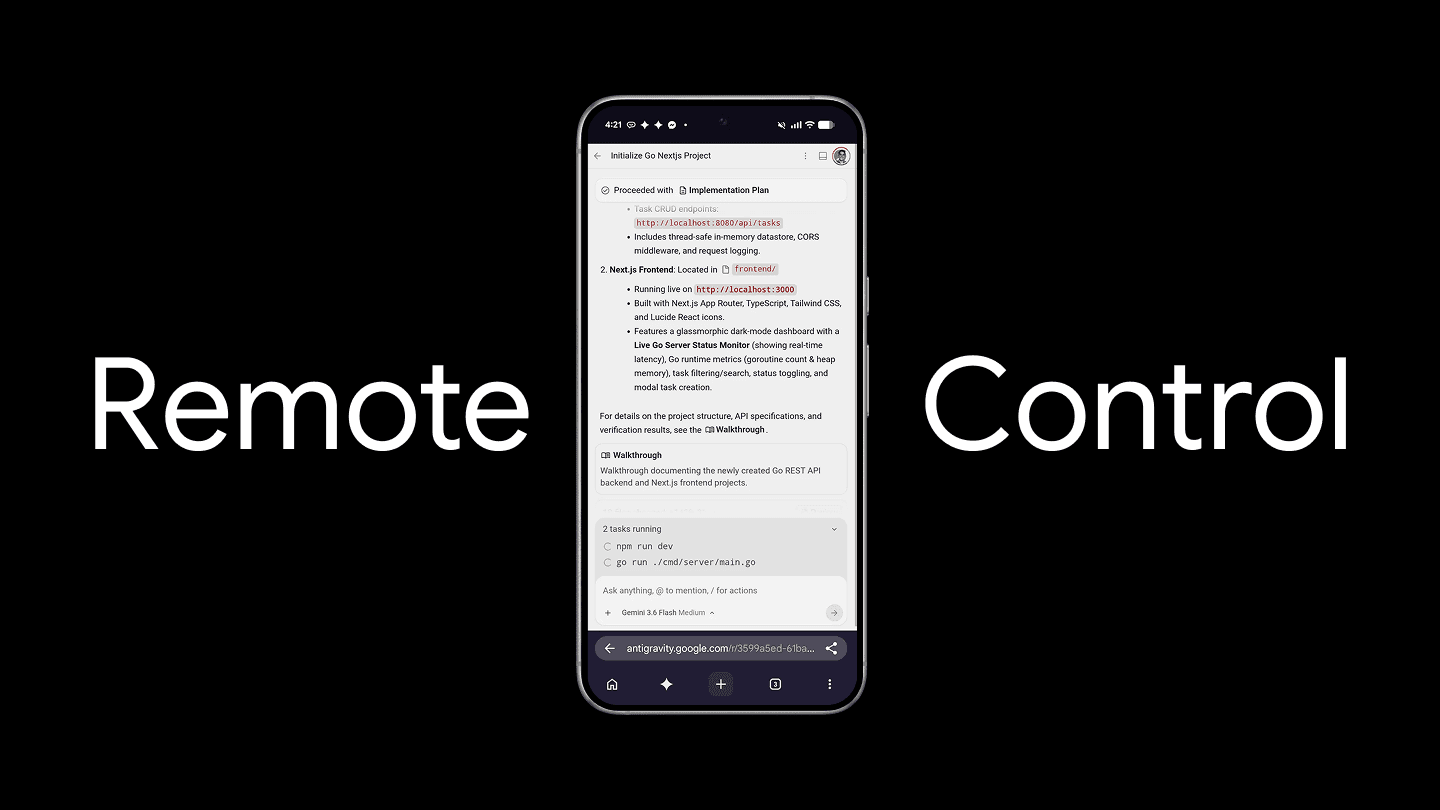
Google Antigravity Remote Control lets you use a browser to view and drive an Antigravity 2.0 session that is running on another machine. It is a way to stay connected to an agent, its files, tools, and task state while you are away from the host. Your desktop or server remains the place where the session and environment run; the browser is the remote control surface.
This guide follows the official launch post, the Remote Control documentation, and the official X announcement. It was checked on August 22, 2026. Product availability, limits, and device support can change after launch.
What Google announced
On August 21, Google Antigravity announced Remote Control through its official X account. The announcement says users can access active sessions from a supported modern browser or mobile device on iOS and Android. The launch rollout began with Google AI Ultra subscribers and was described as expanding to all users.
Remote Control is here! Take Antigravity with you anywhere. Access your active sessions from any modern supported browser or mobile device across iOS and Android. Rolling out to all users starting today, beginning with Ultra subscribers.
— @antigravity August 21, 2026
The linked Google post frames the release around long-running agent work: broad refactors, test suites, build diagnosis, and version-control work can outlast the time you are at your desk. Remote Control is intended to let you inspect progress, respond when an agent needs input, and review output without recreating the workspace elsewhere.
“Starting with Ultra subscribers” is the launch announcement's rollout order, not a permanent pricing guarantee. Check the current product UI and official documentation before making access decisions for a team.
What Remote Control actually does
Google describes Remote Control as a secure browser window into sessions on your laptops, desktops, and servers. The official blog says the remote view retains access to the host's files, workspaces, build tools, credentials, and environment variables. That is precisely why it is useful for an existing work environment, and why treating it as a privileged access path is important.
| Layer | Where it runs | What you do there |
|---|---|---|
| Host instance | Your Antigravity 2.0 desktop machine or a machine registered with the headless daemon. | The session, files, tools, commands, and environment remain on this machine. |
| Remote Control dashboard | A browser at antigravity.google.com. | Select an instance; open active conversations; start tasks; review plans; inspect artifacts. |
| Your phone or other device | A supported modern browser. Google's docs also describe optionally installing the web app on mobile. | Use the dashboard and receive push notifications when an agent finishes a turn or needs input. |
The practical implication is simple: Remote Control gives you continuity with an environment that already exists. It is not a substitute for keeping the host online, nor does it create an independent copy of that environment on your phone.
Desktop vs browser vs headless daemon
“Remote Control” covers two distinct host setups: enabling it inside Antigravity 2.0 on a desktop machine, or installing Google's headless daemon on a machine without that desktop surface. The comparison below separates those from working directly at the host.
| Question | Work directly in Antigravity 2.0 | Remote Control for Antigravity 2.0 | Remote Control headless daemon |
|---|---|---|---|
| Primary interface | Native Antigravity 2.0 desktop app. | Browser dashboard connected to an Antigravity 2.0 desktop session. | Browser dashboard connected to a registered service. |
| Best fit | Hands-on work at the host machine. | Continue an active desktop session while away; review and steer it. | Make a server or other non-GUI machine available in the dashboard. |
| Environment location | The local host. | Still the desktop host; the browser is a remote view. | The daemon host; the browser is a remote view. |
| How it is enabled | Run Antigravity 2.0 normally. | Turn on Enable Remote Control under Settings → Account. | Install and authenticate the official agy daemon service. |
| Host availability | You work where the host is. | The host must be online and not asleep or suspended. | Service behaviour differs by OS; see the table below. |
| Authentication note | Use the desktop app's Google account. | Sign into the dashboard with the same Google account as the desktop app. | The daemon has a separate terminal sign-in, even if the editor is already signed in. |
Set up a desktop machine
The supported desktop path in the official documentation is short:
- In Antigravity 2.0, open Settings with
Cmd + ,on macOS orCtrl + ,on Linux and Windows. - Open the Account section and turn Enable Remote Control on.
- Optionally give the machine a clear nickname, such as
workstation-primary, so it is easy to identify in the instance switcher. - On another device, open the Remote Control dashboard and sign in with the same Google account.
- Select the machine, then verify that you can see the intended active conversation before you start or approve work remotely.
For a phone, the official docs say you can optionally install the dashboard as a web app. That is especially useful for push notifications, but it does not remove the need for the host instance to remain reachable.
Connect a headless machine
For a server or another host where you want an instance without relying on the desktop app, Google documents a Remote Control daemon. The official installation commands are below; they execute a network-fetched installer, so review the current official script and apply your organization's change-control policy before running them.
Linux or macOS
curl -fsSL https://antigravity.google/cli/agy-daemon.sh | bash

# Optional: name the instance during installation
curl -fsSL https://antigravity.google/cli/agy-daemon.sh | bash -s -- install --name "my-box"
Windows (Administrator Command Prompt)
curl -fsSL https://antigravity.google/cli/agy-daemon.cmd -o agy-daemon.cmd && agy-daemon.cmd install
Setup opens a terminal sign-in flow once. Google says this authentication is separate from the desktop editor's sign-in; after setup, the service signs in automatically, including after the relevant reboot behaviour for the platform. Common service management commands are status, restart, and uninstall.
| Daemon behaviour from the official docs | Linux | macOS | Windows |
|---|---|---|---|
| Starts | At boot; no user login required. | When you log in. | At boot; no user login required. |
| Keeps running after sign-out | Yes. | No; it returns at the next login. | Yes. |
| Returns after a crash | Yes. | Yes. | Not until the next boot, scheduled update, or a manual restart. |
A practical remote workflow
Remote Control has the most value when the task is already well-scoped and the host is prepared. A conservative workflow looks like this:
- Prepare the host: start the agent on the desktop or server, confirm the correct project and worktree, and leave enough time for tests or build jobs.
- Move away from the host: open the dashboard from a trusted browser and choose the clearly named instance.
- Inspect before steering: read the current conversation, implementation plan, command state, and artifacts before providing an answer or permission.
- Respond only when needed: Google's launch post highlights push notifications for agent turns that need user input. Use them to review the request rather than blindly continuing it.
- Finish on evidence: inspect the changed artifacts and test results. If the browser connection drops temporarily, the docs say active background agent tasks and shell commands keep running as long as the host keeps its internet connection.
The workflow still requires deliberate review. Its benefit is that you keep the host's context without having to remain physically beside the host while it works.
Limits and rollout details
- The host is still required. A Remote Control instance will not appear if the host is offline, asleep, suspended, or not signed into the same Google account as the dashboard.
- It is a browser surface, not a native mobile application claim. The official launch specifies a modern supported browser on iOS and Android; the documentation describes an optional installed web app for notifications.
- Remote access does not duplicate the workspace. The official product description emphasizes retaining the original host's files, tools, credentials, and environment variables.
- The daemon is a separate identity path. A headless machine requires its own terminal sign-in and can lose access if you sign out of
agyon that machine. - Rollout can be gradual. Google's changelog notes that new versions may take several days to reach all users; do not diagnose missing access solely from launch timing.
Security and operations checklist
The official blog explicitly says the remote interface can expose the host's files, workspaces, build tools, credentials, and environment variables. Google calls it a secure window, but the launch post does not publish a protocol-level security model. Treat the following as operational safeguards, not claims about undocumented encryption or compliance properties.
- Use a dedicated, screen-locked host account and name each exposed instance clearly.
- Use a trusted browser profile on personal or managed devices; do not leave the dashboard signed in on a shared device.
- Keep agent permission thresholds and tool allowlists appropriate for the repository. Remote access should not lower the approval standard for destructive commands or sensitive files.
- Minimize persistent credentials and environment secrets on instances that do not need them. Remote Control preserves the host environment; its privileges travel with that context.
- For a daemon, record who installed it, which Google account authenticated it, the machine name, and its update policy. Google documents
--intervaland--no-auto-updateoptions. - Before using a remote production host, validate the workflow with a non-production project and have an owner review the organization's access and logging requirements.
Troubleshooting the first connection
| Symptom | Official check | Practical next step |
|---|---|---|
| Desktop machine is missing from the dashboard | Confirm Enable Remote Control is on; the host is online and awake; both places use the same Google account. | Re-open Account settings on the host, then refresh the dashboard and verify the selected account. |
| A browser disconnects | The web interface attempts to reconnect automatically. | Check host connectivity first. Background tasks and shell commands should continue while the host remains connected. |
| Headless machine is not in the Hub | Run status and inspect the service log; re-run setup if the log indicates sign-in trouble. | Confirm the daemon's own authentication, rather than assuming the desktop editor's login covers it. |
| Daemon rename does not persist | The name is read when the service starts; a name passed with --name overrides the config file. | Run restart. If needed, re-run setup without --name and use the documented configuration file instead. |
| Two similar instances appear | One can be the editor and one the daemon; Google says the entries are intentionally separate. | Rename the intended machine clearly before starting work remotely. |
Who should use it
Use Remote Control if you already run Antigravity tasks that take long enough to need progress checks, plan review, or an occasional answer away from the host. It is especially practical for a powerful workstation under a desk, a separate build machine, or a server with a prepared developer environment.
Prefer direct local work when the task is short, you need continuous high-bandwidth interaction with local tools, or the host's security policy does not allow remotely reachable sessions. Use the headless daemon deliberately for a managed machine that needs to show up in the dashboard; it is not a casual replacement for workstation setup.
FAQ
Can I use Antigravity Remote Control from a phone?
Google's August 21 announcement says Remote Control supports modern browsers on iOS and Android. The official documentation also says you can optionally install the dashboard as a web app to receive push notifications.
Does it run the agent on my phone or browser?
No. The official description is a browser connection to an Antigravity session on a laptop, desktop, server, or daemon host. The host retains the files, tools, credentials, and environment variables.
Do commands stop when my browser temporarily disconnects?
According to the docs, the browser attempts to reconnect automatically, and active background agent tasks and shell commands continue as long as the host keeps its internet connection.
Does a headless daemon share my desktop app sign-in?
No. Google documents a separate terminal sign-in for the daemon. If you sign out of agy on that machine, the service loses access until you complete setup again.
Is Remote Control an authorization model by itself?
The official materials call it a secure remote window, but do not make the launch post a substitute for your organization's access policy. Keep the host's Antigravity permission settings, tool restrictions, and credential exposure under normal review.
Sources and related guides
Primary official sources
- Google Antigravity Blog: Antigravity Anywhere with Remote Control — published August 21, 2026.
- Google Antigravity Docs: Remote Control — setup, daemon lifecycle, and troubleshooting.
- Google Antigravity on X: “Remote Control is here!” — launch announcement and rollout wording.
- Google Antigravity changelog — Google's note that releases can roll out gradually.