Agent execution terminated due to error: Antigravity Fix
"Agent execution terminated due to error." is a generic message, so the fix depends on what appears next to it. Find your exact message below, then follow the numbered steps for it.
Short answer: "Agent execution terminated due to error." means an agent run ended because of an error that Antigravity did not name. Retry once with a short prompt. If it fails again, start a new conversation, switch models, and turn off MCP servers. If the message includes more text (high traffic, cancelled, cleared a prefix), use the table below. For other issues, see the Main Troubleshooting Hub.
Get the latest on AI, LLMs & developer tools
New MCP servers, model updates, and guides like this one — delivered weekly.
IDE Error Log:
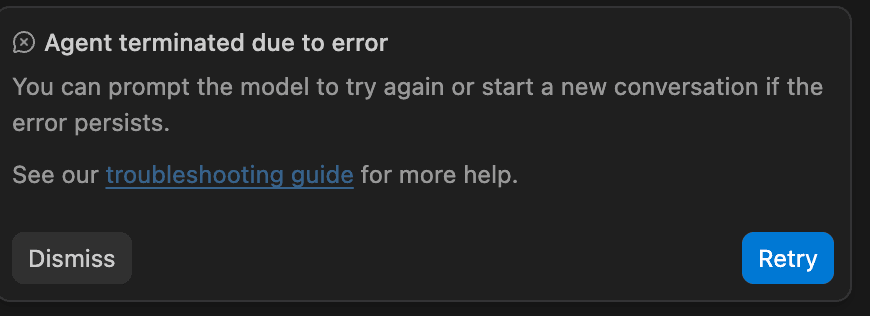
Table of Contents
- Which Message Do You See?
- "Agent execution terminated due to error."
- "You can prompt the model to try again..."
- "User cancelled agent execution."
- "Our servers are experiencing high traffic..."
- "Service temporarily restricted"
- "The server cleared a prefix..."
- "Antigravity server crashed unexpectedly"
- Stuck on "Working"
- Earlier 2026 Causes (March, v1.20.5)
- Step 1: Uninstall & Clear Data
- Step 2: Reinstall Antigravity
- Step 3: Re-login & Verify
- Step 4: Disable MCP Servers
- Step 5: Change the Model
Which Message Do You See?
Antigravity shows several different errors that people lump together as "agent terminated". Match the exact text on your screen. Causes marked "reported" come from Google AI Developers Forum replies or user reports, not from an official root-cause statement.
| Exact message | What it means | First fix |
|---|---|---|
| Agent execution terminated due to error. | Generic. The run ended on an error that is not named. | Retry once, new conversation, switch model, disable MCP |
| You can prompt the model to try again or start a new conversation if the error persists. See our troubleshooting guide for more help. | Advice text attached to the termination message in the IDE. | Same as the row above |
| User cancelled agent execution. | Shown even when you did not press Stop (reported). Google lists timeouts, hung terminal commands, quota limits and dropped streams as possible triggers. | Quit fully, end leftover language_server, clear GPUCache and Session Storage |
| Our servers are experiencing high traffic right now, please try again in a minute. (also "We're currently experiencing high traffic. Please try again later.") | Server capacity. Reported on free, Pro and Ultra plans. | Wait, switch model, check usage. Full guide: 503 high traffic fix |
| Service temporarily restricted ... temporary global restrictions have been applied | A restriction notice tied to high traffic or usage limits. No Antigravity-specific official explanation found. | Check usage and reset time: quota cooldown explained |
| The server cleared a prefix of the conversation as it grew too large. | The conversation is too long and the oldest part was dropped. | New conversation plus a short summary |
| Antigravity server crashed unexpectedly. Please restart to fully restore AI features. | The local language server process died. A different problem from a terminated run. | Server crashed fix |
| Stuck on "Working..." or "Generating..." with no error | Stalled connection, server load, hung command or leftover MCP/rule (reported). | Stop, new chat, switch model, update. See also not responding fix |
"Agent execution terminated due to error."
Direct answer: this is a catch-all. Antigravity ends the run and shows this line without naming the cause. It may appear prefixed with "Unknown:" or "Error:". A Google CLI contributor on GitHub said older CLI versions masked network and authentication failures behind this line, and that recent versions show the real cause on screen when they can.
One documented cause: the Antigravity CLI changelog (v1.2.15, October 5, 2026) says that when your plan quota was used up and your AI credits balance could not cover the request, the CLI retried on Working... for about two and a half minutes and then showed this generic message. It now immediately says "Your AI credits balance is too low to continue." Check your quota and credits first if the error comes after a long "Working..." wait.
- Send one short follow-up prompt (for example, "continue") to retry. In the app, the Retry button on an error card resumes the task without adding a "Continue" message (changelog v2.9.1, August 20, 2026).
- If it fails again, click + to start a new conversation.
- Switch models. If Gemini works and Claude fails, suspect an MCP tool conflict. If every model fails, suspect login, account, quota or capacity. One GitHub issue reporter said switching to a Flash model worked while the High variant failed (community-reported).
- Turn off all MCP servers (Step 4 below), restart, then re-enable them one at a time. A forum bug report documents Claude models failing immediately when Firebase MCP tool 15 (
functions_get_logs) was enabled while Gemini kept working. - Update. In the CLI run
agy upgrade. In the IDE use Help > Check for Updates. - CLI users: run
/logout, log in again. Two GitHub commenters said this fixed it (community-reported). On Windows, a user traced one case to a failing PreInvocation hook command, which ends the run with only this generic line (community-reported). - If it persists, run "Download Diagnostics" from the Command Palette and send the package through the in-app Report Issue option, as Google forum staff ask. Include the Error ID if one is shown.
"You can prompt the model to try again or start a new conversation if the error persists. See our troubleshooting guide for more help."
Direct answer: this is the advice text shown with the termination message. It is not a separate error. Do what it says in order, then use the steps above:
- Type a short prompt such as "continue" to prompt the model to try again.
- If the error returns, start a new conversation and paste a two or three line summary of where you left off.
- Still failing: switch model, disable MCP servers, update the app, and run the Command Palette action
Antigravity: Reset Onboarding(Google forum staff suggested this andDeveloper: Reload Windowfor stuck agents). - Fully quit and end any leftover
language_serverprocess in Task Manager or Activity Monitor before reopening.
"User cancelled agent execution."
Direct answer: the message says you cancelled, but many users report it appearing without any click on Stop. Google forum staff could not reproduce it in one thread and listed possible causes instead: a network interruption or internal timeout, a hung or crashed terminal command, API rate limits or quota, and a safety or policy block. In another thread staff noted that local security tools or VPNs that drop persistent streams can trigger this abort. A user in that thread saw it return after 1 to 3 requests even with quota left.
- Fully quit Antigravity, then end any lingering
language_serveror helper process in Task Manager or Activity Monitor. - Delete the
GPUCacheandSession Storagefolders in%APPDATA%\Antigravity\(Windows),~/Library/Application Support/Antigravity/(macOS) or~/.config/Antigravity/(Linux). Both are caches, not your project files. - Pause any VPN, proxy or security tool and test again.
- Check for a hung terminal command: open the Command Palette and kill active terminal processes.
- Check your quota and reset time in the model settings page.
- For CLI users, staff suggested setting Terminal Command Auto Execution to Proceed in Sandbox under Settings > Agent Settings, and using
/planfor complex tasks to avoid single-turn timeouts. - Still happening: open Help, then "Provide feedback", tick "Attach Antigravity server log", and send the report.
"Our servers are experiencing high traffic right now, please try again in a minute."
Direct answer: a server-side capacity message. Forum users report it on free, Pro and Ultra plans and across all models during busy periods, sometimes for hours. The variant "We're currently experiencing high traffic. Please try again later." is the same family. Google staff described adding extra capacity windows (late afternoon Pacific time at the time of that post), which is a timing hint, not a fix.
- Wait a minute and retry once. Repeated Retry clicks can burn quota; one forum user said their quota ran out from retries (community-reported).
- Check the Antigravity status on a third-party tracker and your usage under the model settings.
- Switch to a different model or tier. A forum answer notes that during busy periods all models can fail together.
- Try again off-peak.
- If you see a 503 or
MODEL_CAPACITY_EXHAUSTEDin the details, follow the 503 high traffic and rate limit guide.
"Service temporarily restricted ... temporary global restrictions have been applied"
Direct answer: I could not find an Antigravity-specific official explanation for this exact wording, so treat the cause as unconfirmed. Its text points to high traffic and a temporary restriction, and it looks like a usage or capacity limit rather than a local fault. The words "Service Temporarily Restricted" also appear in a GitHub Copilot weekly-limit thread, where staff called it a built-in usage cap, so do not assume the two products mean the same thing.
- Do not reinstall. Nothing on your machine causes a server-side restriction.
- Open your model usage page and look for a reset time. If you see a weekly or multi-day lockout, read weekly quota cooldown explained.
- Try another model, then wait and retry later.
- If you are on a paid plan and the restriction does not lift or the usage page contradicts it, file a report with the server log attached.
"The server cleared a prefix of the conversation as it grew too large."
Direct answer: your conversation hit a size limit and the server dropped its oldest part. A Google forum reply described it as the oldest turns being trimmed so the model can handle your latest prompt, not as deleting your project. Other users report that it can be followed by "Agent execution terminated due to error" with an Error ID, or by a looping agent, and one bug report put the trigger at roughly 15,000 trajectory steps (user-reported figure, not an official limit).
- Stop the agent if it is looping.
- Do not keep typing into that conversation. A bug report says prompts queued during the cleared state can be lost, so keep a copy of anything important.
- Start a new conversation and paste a short summary of what was done and what is next. Google staff gave this advice directly.
- If work looks missing, check the editor Timeline panel for the file, or run
Local History: Find Entry to Restorefrom the Command Palette (suggested by Google forum staff). - Going forward, keep one task per conversation and ask the agent to write a summary note before you move on.
"Antigravity server crashed unexpectedly. Please restart to fully restore AI features."
Direct answer: this is the local language server process failing, not a model or quota error. Restart Antigravity first. If it keeps crashing, the causes are covered in our dedicated Antigravity server crashed fix. If the chat panel is blank instead, see the blank chat fix.
Stuck on "Working..." (no error shown)
Direct answer: the agent is waiting on something that is not returning. Reported causes in Google forum replies include high-traffic periods, long chained terminal commands, a leftover MCP entry or a global rule scanning a large folder in ~/.gemini/, and a bug where hitting 0% quota with AI credits off left the agent spinning (staff said recent builds fixed it). The CLI changelog (v1.3.6, October 15, 2026) says a model connection that sends no data for 5 minutes is now cancelled and retried automatically, so update first.
- Press the red Stop button, wait a few seconds, then click + for a new chat.
- Switch from a High tier to a lower tier or another provider.
- Update Antigravity (Help > Check for Updates, or
agy upgradein the CLI). - Check
~/.gemini/for a leftovermcp_config.jsonentry or a global rule that scans a huge folder. - Still stuck: run
Antigravity: Reset OnboardingthenDeveloper: Reload Window. If it persists, fully quit and end thelanguage_serverprocess. - Open
Developer: Toggle Developer Toolsand look at the Console for red errors to include in a report.
Earlier 2026 Causes (March, v1.20.5)
The four items below were reported in March 2026 around the v1.20.5 release. They are kept as history and as things to check if you are on an old build or the symptoms match. I could not re-verify them against the current changelog, so treat them as community-reported. If you are on a current build, try the message-specific steps above first.
New Causes in March 2026
Earlier versions of this page said that several new root causes for the "Agent terminated due to error" message had been identified since the v1.20.5 release, and that if you started seeing this error in March 2026, one of the cards below was likely the culprit, even if earlier troubleshooting steps had worked before. They also said two of these carried over into the Antigravity 2.x line (the 2.0 IDE and the agy CLI share the same agent runtime) and were still live in July 2026.
Update (Oct 30, 2026): these are community-reported (March 2026) and we found no official Google statement or changelog entry confirming them, including the claim that they persist on Antigravity 2.x. Earlier versions also described the cross-model lockout as spanning the full hosted model line-up on 2.x and gave a Command Palette item named "Antigravity: Restart Agent Service" to clear it. We could not confirm that command name in current docs; if it is missing, fully quit and reopen Antigravity instead.
Quota Sync Bug — Pro Treated as Free
A backend quota-sync regression introduced in v1.20.5 causes the server to temporarily misclassify Pro-tier accounts as Free-tier accounts. This immediately triggers rate-limit enforcement and terminates any running agent session. The fix is to sign out, wait 30 seconds, and sign back in — this forces a fresh quota handshake. For a detailed walkthrough, see our guide on fixing Antigravity IDE quota issues. I found no current changelog entry confirming whether this still happens on Antigravity 2.x, so treat the sign-out and sign-in reset as a cheap test rather than a known fix.
Cross-Model Lockout
Starting in early March 2026, users switching rapidly between Gemini 3.1 Pro and Claude models have reported a cross-model lockout state — where neither model accepts new agent tasks and both return the terminated error. The lockout was reported to clear by itself after roughly 5 minutes. A reported shortcut was restarting the agent service from the Command Palette (Cmd/Ctrl + Shift + P). I could not confirm that exact command name in current docs, so if it is missing, fully quit and reopen Antigravity instead.
Credit System Update Breaking Agent Sessions
The v1.20.5 credit system overhaul changed how mid-session credit checks are performed. In some cases, a credit deduction event fires mid-agent-run, the session token is invalidated before the task completes, and the agent is terminated with an error. If your credits dashboard shows unexpected deductions or a zero balance despite having credits, review the Antigravity credits and pricing explained guide for steps to reconcile your balance and prevent session interruptions.
v1.20.5 macOS Conversation Corruption Bug (March 11 Reports)
Beginning on March 11, 2026, a wave of macOS users reported that after updating to v1.20.5, existing conversations would silently corrupt their local state file, causing every subsequent agent invocation to terminate immediately. The workaround is to delete the ~/Library/Application Support/Antigravity/conversations/ subfolder (your code files are unaffected — only the chat history is lost) and then relaunch the app. A patch was expected in v1.20.6. If you are on a current build this should no longer apply.
Step 1: Uninstall Antigravity & Clear Data
Last resort. Try the message-specific steps above first. A full reinstall will not fix server-side messages such as high traffic, restrictions or quota limits.
To fix persistent termination errors, you must perform a clean uninstallation. This involves removing the application itself and, more importantly, deleting the configuration folders that may contain corrupted session data.
1.1 Uninstall the Application
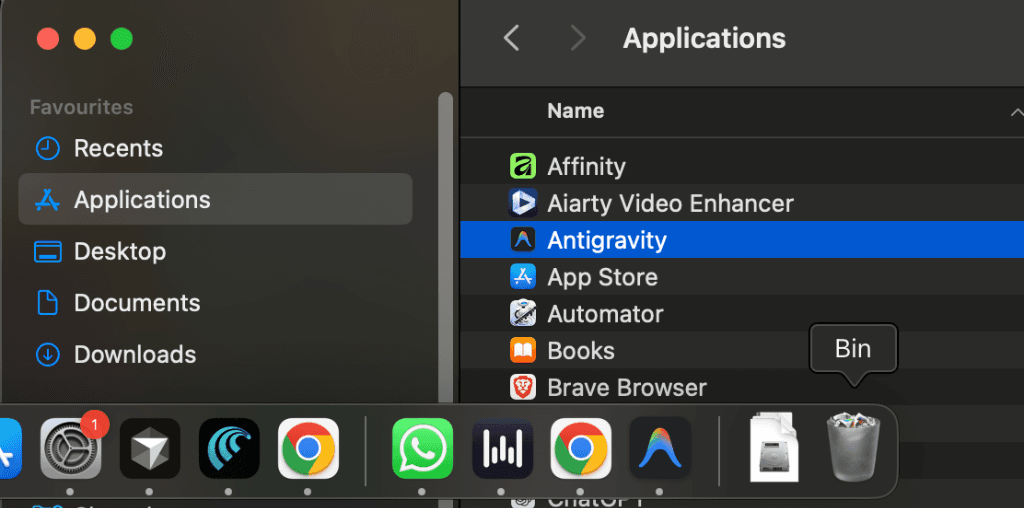
macOS: Open Finder, go to the Applications folder, and drag Antigravity to the Trash. Empty the Trash to complete the removal.
1.2 Delete Configuration Folders
Corrupted cache or auth tokens are the most common cause of agent failures. Delete the relevant folder for your operating system:
🍎 macOS
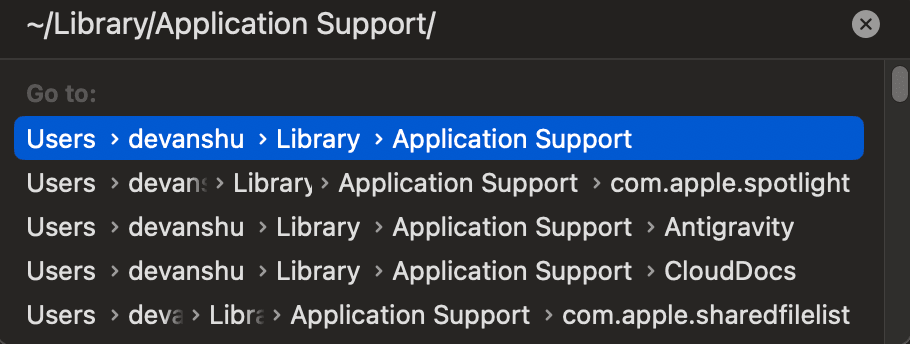
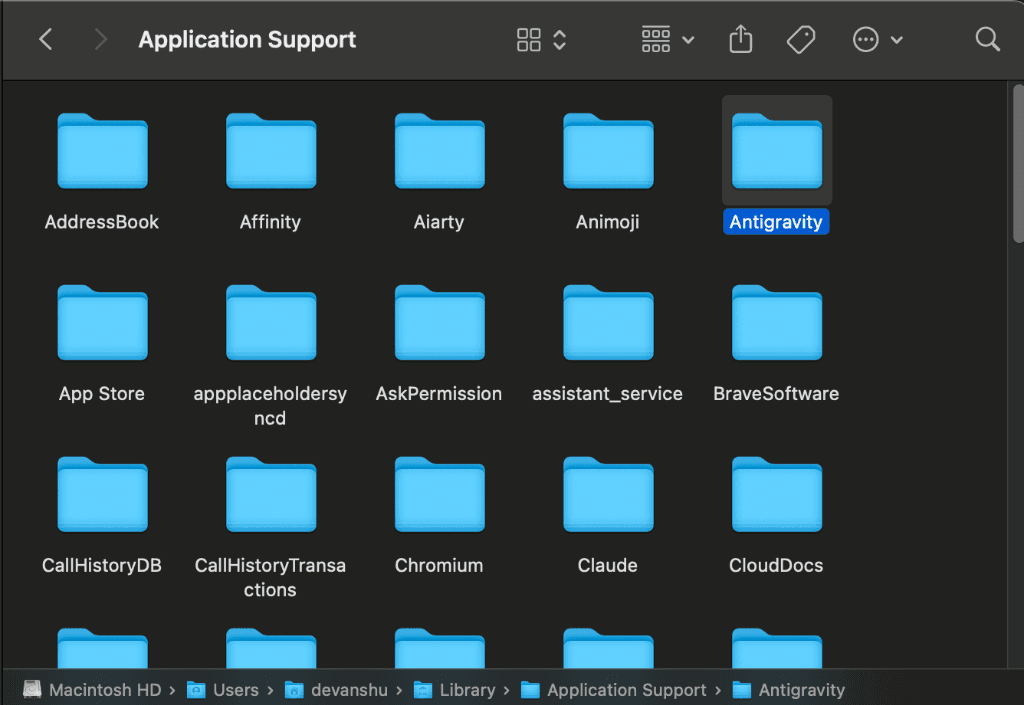
Manual Path: Open Finder, press Cmd + Shift + G, and enter ~/Library/Application Support/. Locate and delete the Antigravity folder.
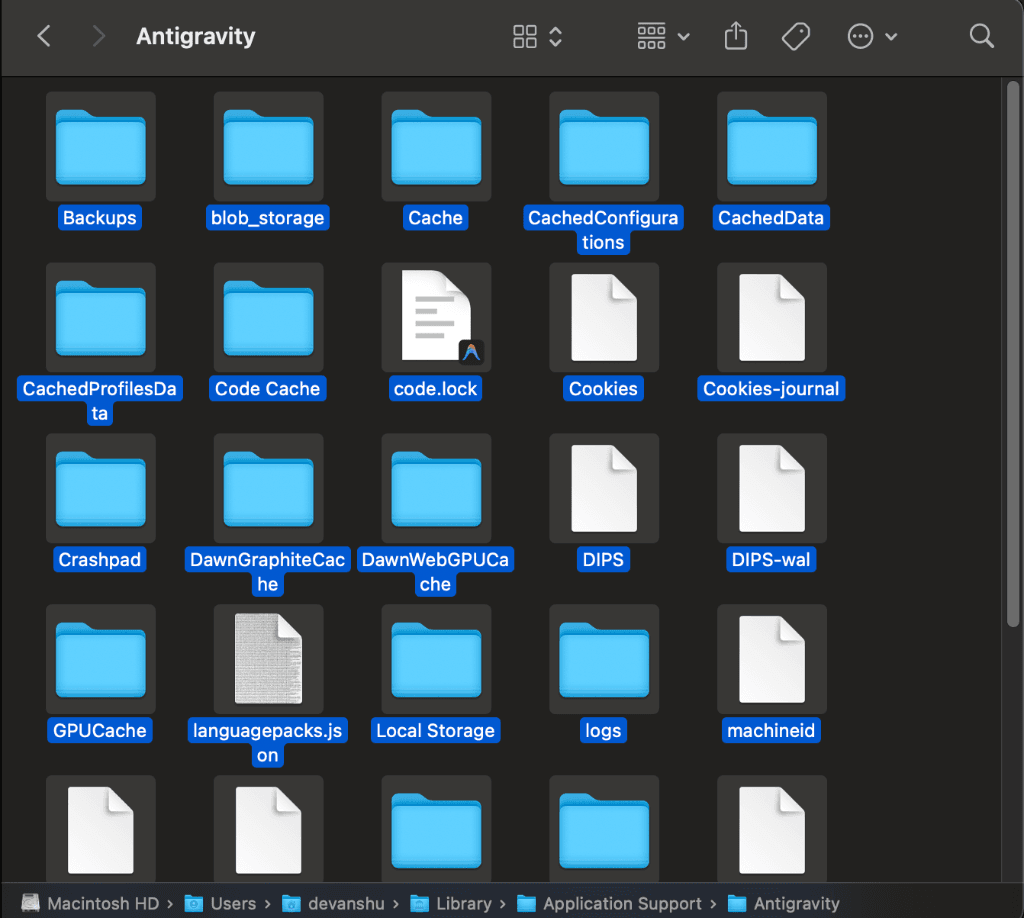
Terminal:
🪟 Windows
Manual Path: Press Win + R, type %APPDATA%, and delete the Antigravity folder.
Command Prompt:
🐧 Linux
Manual Path: Open File Manager, show hidden files (Ctrl + H), go to ~/.config/, and delete the Antigravity folder.
Terminal:
Once your system is cleared, you are ready for a fresh start. Follow the steps below to reinstall and verify your environment.
Step 2: Reinstall Antigravity
Now that your system is clean of corrupted data, it's time to perform a fresh installation of the latest version.
2.1 Download the Installer
Head over to the official download page to get the latest stable release:
2.2 Installation Process (Mac)
After downloading the .dmg file, open it and drag the Antigravity icon into your Applications folder.
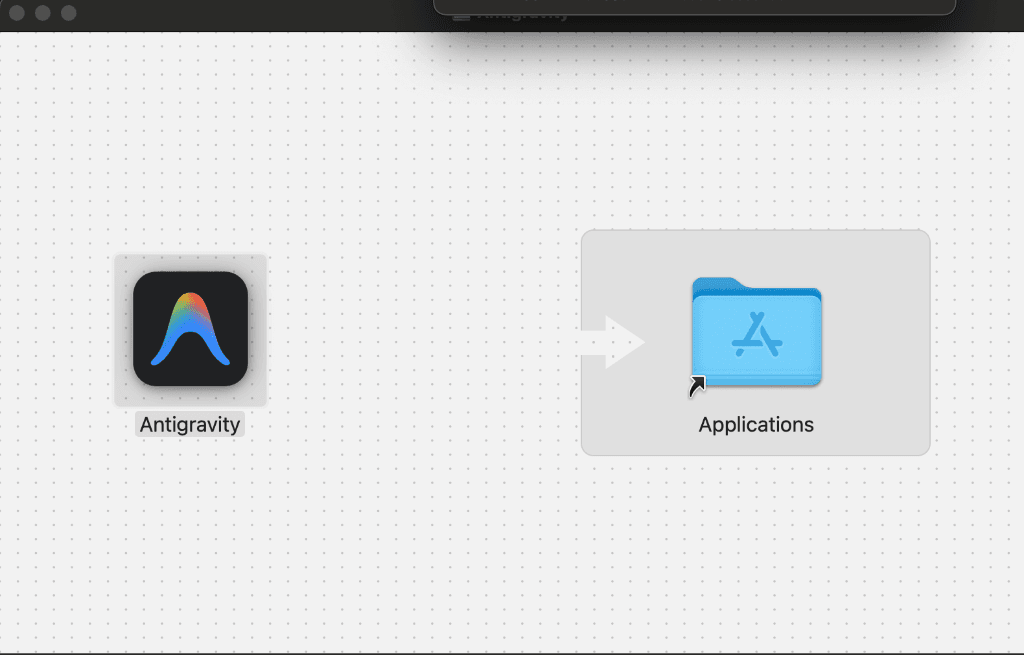
Wait for the copying process to complete. This ensures all necessary app assets are correctly placed in your local storage.

2.3 Initial Launch
Open Antigravity from your Applications folder. You should see the welcome screen. Clicking "Next" will guide you through the initial setup, where you'll sign in and re-initialize your workspace.
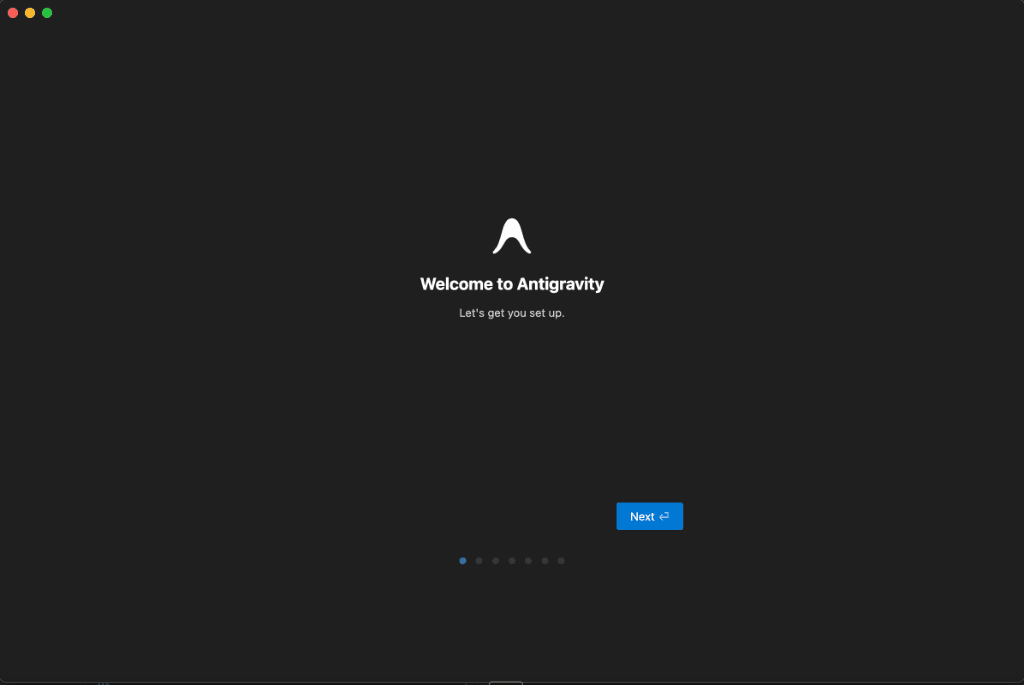
Step 3: Re-login & Verify
Once the app is installed, you need to re-authenticate with your Google account. This refreshes your session tokens and ensures the agent has the correct permissions to access the LLM providers. If sign-in itself loops or throws an "Authentication Required" message at this step, resolve that first with our unable to sign in fix guide.
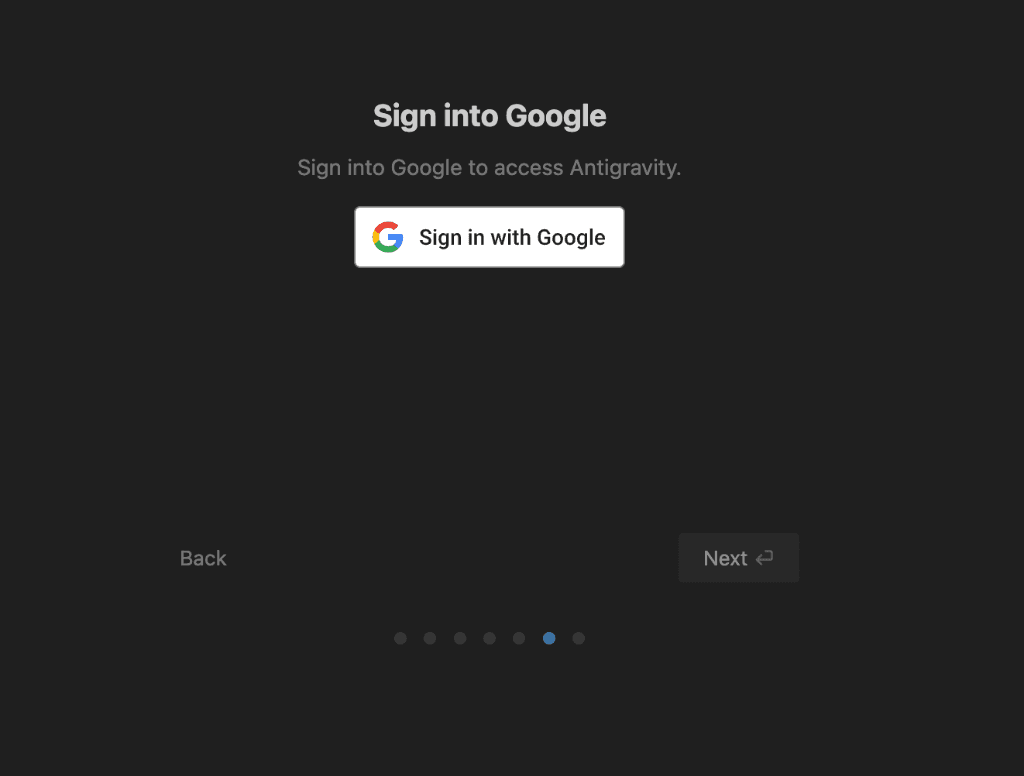
After signing in, follow the onboarding prompts to restore your previous workspace or start a fresh one.
Step 4: Disable MCP Servers (If Error Persists)
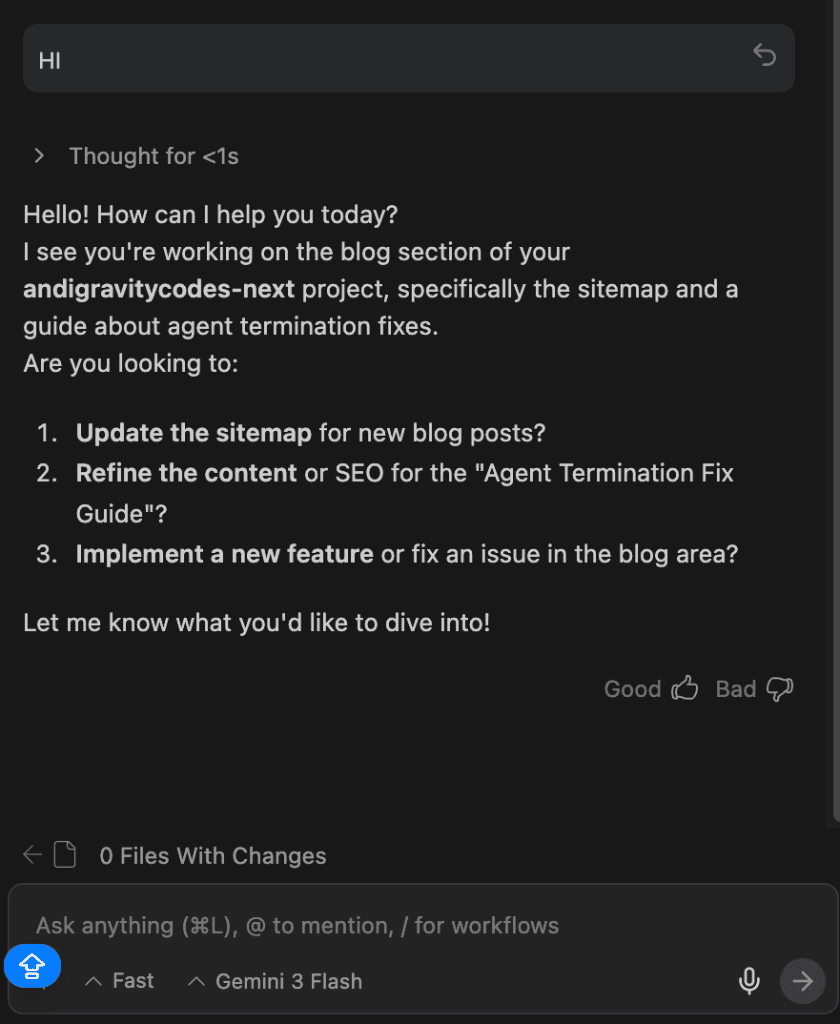
If you've reinstalled and re-logged but the "HI" verification still fails, the culprit might be a misconfigured or hanging **Model Context Protocol (MCP)** server. MCP servers connect the agent to external tools, and if one fails to initialize, it can terminate the entire agent process. You can find more specific error codes in our Antigravity Error Index.
4.1 Access MCP Settings
Click the triple dots ... icon in the top right corner of the Antigravity sidebar and select MCP Servers.
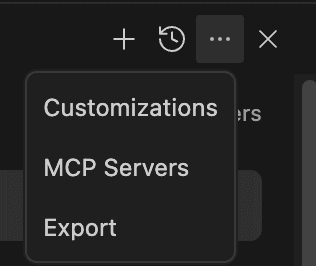
4.2 Toggle Off All Servers
Disable all active MCP servers temporarily. If the agent starts working again, you can re-enable them one by one to find the specific server causing the termination.
Step 5: Switch AI Models (Bypass Provider Overload)
Sometimes the "Agent terminated" error is caused by a temporary overload on a specific model provider's server (e.g., Google or Anthropic). If the agent is unresponsive on one model, switching to a different one can often bypass the bottleneck.
5.1 Open the Model Selector
Look at the bottom bar of your Antigravity IDE. Click on the current model name to open the selection menu.
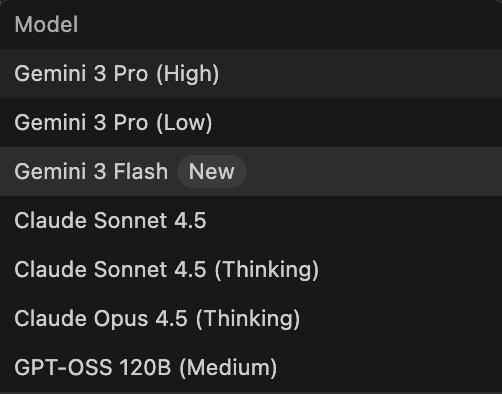
5.2 Try a Different Tier
Model names change often, so open the selector and see what your build lists. If a High tier model is failing, try a Flash or lower tier model, or a model from another provider. Lower-tier models or those from different providers often have different rate limits and might be available even when high-tier models are under heavy load. If switching itself triggers the error, see the cross-model lockout note in Earlier 2026 Causes above and fully restart the app.
Final Step: Verify the Fix
The best way to check if everything is working correctly is to send a simple "HI" message in the chat. If the agent responds quickly and accurately, your termination issues are solved!
🛡️ Issue Resolved!
Congratulations! You've successfully cleared the corrupted cache and performed a clean install. Your Antigravity Agent should now be running smoothly.
Related Guides
Fix: Server Crashed Unexpectedly
Optimize RAM, GPU settings, and cache to prevent server crashes.
TroubleshootingFix: Missing or Stuck Project Context
Verify Project folders, checkout mode, Strict Mode, and file access without deleting state.
TroubleshootingFix: Antigravity Not Responding
10 proven solutions from force quit to complete reinstall.
TroubleshootingHow to Clear Antigravity Cache
Complete cache clearing guide for macOS, Windows, and Linux.
TroubleshootingFix: Error Generating Commit Message
Fix the stream error 503 with a workflow workaround.
TroubleshootingFix: MCP Initialize EOF Error
Resolve path issues, auth drift, and MCP configuration errors.
Get 850+ Gemini 3 Coding Prompts
Write better code, debug faster & build apps quicker with AI. Join 5,000+ developers mastering Antigravity.